Set Variables
The Set Variables section allows you to put information into context by setting entities or local variables (prefixed with @) to specific values or to the result of specific functions. While entity fields hold values according to their defined data types, local variables are always treated as strings.
To access the flow step Set Variables, in the Flow Step editor, click on the Set Variable section header. The section expands.
To set an entity or variable, click the Add New button. An empty line for variable appears and below it as many empty lines for the values as AI Agent languages are (the first one is the AI Agent default language). Provide an entity or variable and in the key / value field set the desired value per language.
Set as many variables as you need on the flow step then save the step.
You can use two-stage set variables (both scalar and entity), eliminating the need to add two separate set variables to fulfill this requirement. For instance, instead of incorporating two set variables:
[[DrivingLicense]].ExpirationDate = '2024-05-05'[[Employee]].DrivingLicense = [[DrivingLicense]]
You can now streamline the process with just one scalar set variable:
[[Employee]].DrivingLicense.ExpirationDate = '2024-05-05'
Similarly, for entity set variables, such as:
[[Employee]].Document.DrivingLicense = [[DrivingLicense]]
Set variables and multilingual entity fields
You can put information into context by setting entities to language specific values.
Prerequisite
- The entity field has the Holds multilanguage records option enabled. For more information, see Managing Entity Fields and Multilingual Entity Fields.
In the Set Variable section on the desired flow step, provide the desired entity as key and the multilingual entity field as key and as value for all languages. The multilingual entity field acts as an alias for the language-specific field clones and Druid will automatically set values based on the user's language. You can also provide as value the language-specific field clones (which are available in entity object explorer).
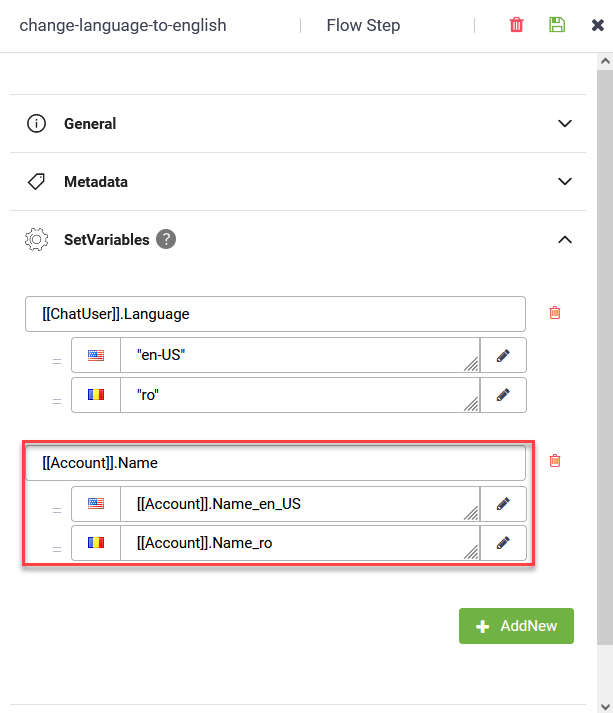
For more information, see Managing Entity Fields and NER and Multilanguage AI Agents.
Setting Up Variables Examples
| Example | Description |
|---|---|
| [[FinancialProduct]].PrincipalAmount = 35000 | Sets to a number. |
| [[FinancialProduct]].Notes = “to refinance another loan” | Sets to a string. |
| [[ChatUser]].Language = “en-us” | Sets to a string. |
| [[Form]].CurrentWelcomeTime = new Date(); | Sets the CurrentWelcomeTime field of type DateTime, to the current date. |
| [[Form]].LastWelcomeTime = [[Form]].LastWelcomeTime == null ? [[Form]].CurrentWelcomeTime : [[Form]].LastWelcomeTime | Uses the conditional (ternary) operator. |
| [[Form]].MinutesFromLastWelcome = Math.abs([[Form]].CurrentWelcomeTime - [[Form]].LastWelcomeTime) / 36000 | Uses a math function. |
| [[SelectedProduct]] = [[ProductList]][0] | Uses entity collections. Sets the [[SelectedProduct]] entity (type Product) with the first element from the array [[ProductList]]. |
| [[SelectedProduct]].TotalAmount = [[SelectedProduct]].UnitPrice * [[SelectedProduct]].Quantity | |
| [[Invoice]].LinesCount = [[InvoiceLineList]].Count |
Set variables using advanced coding
You can use advanced coding in Set Variables when assigning a value requires more complex processing. In addition to calculating and assigning values, advanced coding provides access to the current flow step through the thisStep object.
To use advanced coding, in the Set Variables section of your flow step, select the desired entity or variable and click the Edit icon. The Code Editor page appears.
The Code Editor provides a set of predefined code templates that you can use to define your JavaScript code. To add a template, click Add default template, and then select the template that best suits your needs.
In the Code Editor, entities from the conversation context are referenced with the same syntax you are already familiar, using brackets. Example: [[ChatUser]], [[Account], etc.
Control the current flow step using thisStep
The thisStep object provides access to the current flow step while the Set Variables code is being executed. You can use it to modify the step before its configured post actions are executed.
thisStep manipulation in Set Variables is available starting with Druid 10.0.Using thisStep, you can dynamically control the current step based on your business logic. For example, you can:
- clear the current step's post actions to prevent a configured action, such as an integration, from executing;
- set a debug message;
- modify the current step message;
- use other supported properties of the current flow step.
This is particularly useful when you need to validate data before allowing subsequent actions configured on the step to execute.
For example, use the following statement to clear all post actions configured on the current step:
Clearing the post actions prevents those actions from being executed. The conversation can then continue to the following flow step. This is useful when the current step prepares data for an integration and you can determine, before executing the integration, that the request is invalid.
For example, you can:
- Process and validate the values received by the Set Variables step.
- Detect that one or more values do not meet your business validation rules.
- Clear the post actions to prevent the integration from executing.
- Continue to the following flow step, where the validation result can be processed.
You can also use other supported thisStep properties. For example:
Add debug message
thisStep.DebugMessage = "Validation failed. Integration execution was skipped.";To modify the message of the current step, use:
Validate integration requests before execution
In agentic flows, Set Variables can be used to process and validate arguments received from an LLM before those arguments are sent to an integration.
A typical flow can consist of: Set Variables → Integration → Custom Code
In this pattern:
- Set Variables processes the arguments and builds and validates the integration request.
- Integration executes the request.
- Custom Code processes the integration response and adds relevant information to the LLM context.
If validation in Set Variables determines that the request should not be executed, clear the current step's post actions: thisStep.Metadata.PostActions?.Clear();
This prevents the integration from being triggered. The flow can continue to the Custom Code, where you can add information about the validation error to the LLM context. The AI Agent can then use this information to correct the arguments and retry the operation without requiring additional user input.
(
    function ()
    {
        // Process and validate the integration request.
        if (/* validation fails */)
        {
            // Prevent the configured integration from executing.
            thisStep.Metadata.PostActions?.Clear();
            // Provide debugging information.
            thisStep.DebugMessage =
                "Request validation failed. Integration execution was skipped.";
            // Return the value required by the Set Variables assignment.
            return false;
        }
        return true;
    }
)()
Use this approach when validation depends on information that is available at runtime, such as function arguments, existing entity values, or other conversation context.
Start from scratch using an empty inline function
You structure your code inside an inline function.
Set Entity Template
Use this template if you want to create an entity or if you want to set scalar attributes. Remove the unnecessary code to accommodate your needs.
Set entity template - Example
/*
        Create an Entity: EntityFactory.CreateEntityByName("your_entity_name");
        # Template Name: Set an Entity
        function returning an Entity
*/
(
function ()
{
        let newEntity = EntityFactory.CreateEntityByName("your_entity_name");
        newEntity.Name = i.toString();
        newEntity.Surname = i.toString();
        newEntity.Status = "Draft";

    /* You can refer any context slot. Example: [[ChatActivity]].Field1
        You can read or set on the conversation context.
        [[ChatActivity]].Field1 = "lore ipsum"
        [[ChatActivity]].Amount = [[ChatActivity]].Amount * 1.5
       */
       return newEntity;
}
)()
Set Entity Collection Template
Use this template if you want to create an entity collection. Remove the unnecessary code to accommodate your needs.
Entity Collection Template - Example
/*
  Create an Entity Collection: EntityFactory.CreateCollection("<Entity Name>");
  Create an Entity: EntityFactory.CreateEntityByName("<Entity Name>");

  # Template Name: Set an Entity Collection
  function returning an Entity Collection
  Sample code for set variable: [[Account]].Tasks = <the code bellow>
*/

(
    function ()
        {
          let vbTaskList = EntityFactory.CreateCollection("Task");
          for (let i = 0; i < 200; i++)
              {
                let newTask = EntityFactory.CreateEntityByName("Task");
                newTask.Nume = i.toString();
                newTask.Prenume = i.toString();
                newTask.Status = "Draft";
                vbTaskList.Add(newTask);
              }
          return vbTaskList;
        }
)();
Extensive methods for collections
You can use the following methods to work with collections:
| Method | Example |
|---|---|
| Create a new collection |
Copy
|
| Add new item at the end of the collection |
Copy
|
| Insert new item to collection at the specified position |
Copy
Example - Add contract #20000 at position 2 |
| Remove an item from a collection from the specified position | |
| Get the number of elements in a collection | |
| Refer an item inside a collection |
Set Variables – Error Handling
You can configure the behavior of the conversational engine when encountering an error on variable assignment. This setting controls whether the conversation continues or stops when an error is detected while setting a variable.
When an error occurs, Druid can either skip it silently or raise an exception in the Conversation History, similar to how connector errors are handled.
To configure error handling for Set Variables:
- Go to the AI Agent details > Dialogue management.
- From the Set variable error severity drop-down, select one of the following options:
- Silent – Skips the error and continues the conversation. This was the default behavior in previous releases.
- Raise exception – Triggers an exception and records the error in the Conversation History. Use the Raise exception option to detect configuration issues early and prevent incomplete or incorrect variable assignments during conversations.
- Save the configuration.
In Druid 9.20 and higher, for steps that have the Error Handler set, you can author how the error is handled in the conversation. Additionally, you can create a flow dedicated to error handling and select it from AI agent details > Dialogue management section, Exception flow drop-down.
 Related Topics